Python OCR: pytesseract, EasyOCR, PaddleOCR and an API, with code that runs
OCR in Python with four options, each run on the same invoice: pytesseract, EasyOCR, PaddleOCR 3 and an OCR API. Code, real output and which to pick.
Updated
TL;DR
- pytesseract read every word of our printed invoice, but returned the table as plain lines.
- EasyOCR read most dollar signs as S and skipped single-digit numbers on the same file.
- PaddleOCR 3 was accurate but uses a new predict() API; most tutorials online are for version 2.
- An OCR API returned the line items as a Markdown table, which the local libraries could not do.
Python has four practical ways to do OCR: pytesseract (a wrapper around the Tesseract engine), EasyOCR, PaddleOCR, and calling a hosted OCR API over HTTP. This guide gives you code for each one that we ran on the same invoice image on November 15, 2026, shows what each returned, and tells you which to pick.
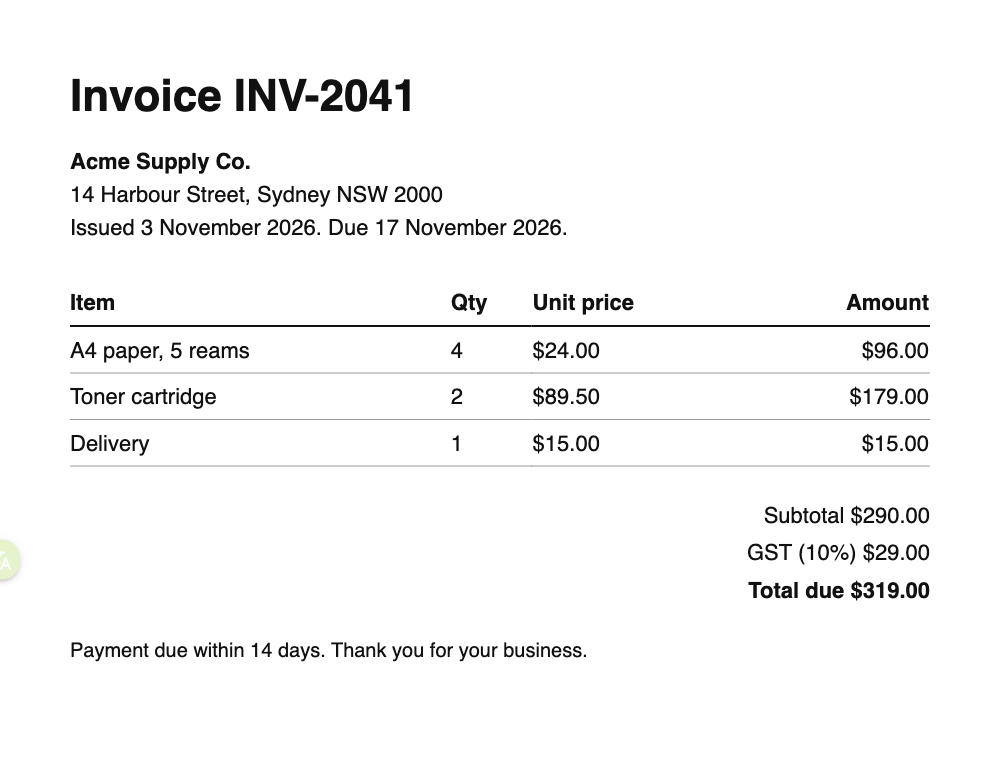
All four scripts read the same file: the 1000 x 760 px sample invoice from our homepage. You can download it here and follow along.
Which Python OCR library should you use?
Short answer, from our run on a clean, printed invoice:
| Option | Install size | Words wrong on our invoice | Keeps table structure | Runs offline |
|---|---|---|---|---|
| pytesseract + Tesseract 5.5.4 | Small (needs the Tesseract binary) | 0 | No, plain text lines | Yes |
| EasyOCR 1.7.2 | Large (pulls in PyTorch) | Several: $ read as S or 8, two numbers missed | No, one string per box | Yes |
| PaddleOCR 3.4.0 | Large (pulls in PaddlePaddle) | 0, plus one stray A | No, one string per box | Yes |
| OCR API (mistral/mistral-ocr) | Just requests | 0 | Yes, Markdown table | No |
- Pick pytesseract for clean, printed scans when you want a small install and no network.
- Pick PaddleOCR when you also need Chinese, Japanese or other non-Latin scripts and can afford a large install.
- Pick an API when you need tables, handwriting or messy phone photos, or you do not want to manage models. The handwriting and table posts show where local engines fall short.
One invoice is not a benchmark. Treat the table as "this is what the code does", not as a ranking. For rankings, see our post on OCR benchmarks.
Set up a clean environment
Use a virtual environment so the heavy dependencies do not fight with each other. We used Python 3.12 on an Apple Silicon Mac.
python3.12 -m venv .venv
source .venv/bin/activate
pip install pytesseract pillow requests
pytesseract does not include the OCR engine. Install Tesseract itself from your package manager:
# macOS
brew install tesseract
# Debian or Ubuntu
sudo apt install tesseract-ocr
Check it with tesseract --version. We used 5.5.4.
Option 1: pytesseract
pytesseract calls the tesseract command for you and returns its output as a Python string.
from PIL import Image
import pytesseract

text = pytesseract.image_to_string(Image.open("invoice.png"), lang="eng")
print(text)
Output on our invoice (first lines):
Invoice INV-2041

Acme Supply Co.
14 Harbour Street, Sydney NSW 2000
Issued 3 November 2026. Due 17 November 2026.

Item Qty Unit price Amount
A4 paper, 5 reams 4 $24.00 $96.00
Toner cartridge 2 $89.50 $179.00
Every word was right. The table came back as space-separated lines, so you would have to split columns yourself.
Get word positions and confidence
image_to_data returns one row per word with its bounding box and a confidence score from 0 to 100:
from PIL import Image
import pytesseract

data = pytesseract.image_to_data(Image.open("invoice.png"), output_type=pytesseract.Output.DICT)
for word, conf in zip(data["text"], data["conf"]):
    if word.strip():
        print(f"{word:<12} {conf}")
Most words scored 95 or 96. The lowest were A4 at 77 and Item at 88, and both were still read correctly. A low score tells you where to look, not that the word is wrong.
When pytesseract struggles
Tesseract wants clean input. Its own documentation says it "works best on images which have a DPI of at least 300 dpi". In our tests it read every word of the invoice at full size, but only 6.9% of the words when we shrank the image to a third (333 x 253 px), and 6.4% of the words in a handwritten note. Details are in How to improve OCR accuracy.
Option 2: EasyOCR
EasyOCR is a deep-learning OCR library built on PyTorch. It downloads its detection and recognition models the first time you run it.
pip install easyocr
import easyocr

reader = easyocr.Reader(["en"], gpu=False)  # downloads models on first run
for bbox, text, conf in reader.readtext("invoice.png"):
    print(f"{conf:.2f}  {text}")
What we got back (excerpt):
0.97  Invoice INV-2041
0.69  Acme Supply Co.
0.67  14 Harbour Street; Sydney NSW 2000
0.94  S24.00
0.62  S96.00
0.56  815.00
0.81  Oty
EasyOCR found every line, but it read most dollar signs as S, once as 8, turned commas into semicolons, read Qty as Oty, and skipped the single-digit quantities. On printed English, Tesseract did better here.
A dependency trap we hit
In a fresh environment, pip resolved PyTorch 2.2.2 together with NumPy 2.x, and readtext failed with RuntimeError: Numpy is not available. Pinning NumPy fixed it:
pip install easyocr "numpy<2"
If you install EasyOCR and PaddleOCR in the same environment you are more likely to hit conflicts like this. Give each its own venv.
Option 3: PaddleOCR
PaddleOCR is Baidu's open-source OCR toolkit. Version 3 changed the API: you call predict() and read rec_texts and rec_scores from each result. Older tutorials that call ocr.ocr(img, cls=True) are for version 2.
pip install paddlepaddle paddleocr
from paddleocr import PaddleOCR

ocr = PaddleOCR(
    lang="en",
    use_doc_orientation_classify=False,
    use_doc_unwarping=False,
    use_textline_orientation=False,
)
for page in ocr.predict("invoice.png"):
    for text, score in zip(page["rec_texts"], page["rec_scores"]):
        print(f"{score:.2f}  {text}")
We turned off the three optional pre-processing models because the invoice is a flat, upright scan; leave them on for phone photos. The first run downloads models; on our laptop the whole script took about 19 seconds on CPU, most of it loading.
Every word was correct, with scores from 0.93 to 1.00. It also returned one stray A with a score of 1.00, so a high score does not prove a line is real. Like EasyOCR, it returns one string per detected box, so table cells come back as separate lines: Item, Qty, Unit price, Amount.
Option 4: call an OCR API from Python
A hosted API runs the model for you. You send the file, you get text back. With OCRRouter the request is the same for every model, so you can switch from one engine to another by changing one string.
import base64, os, requests

API = os.environ.get("OCRROUTER_API", "https://api.ocrrouter.ai")

with open("invoice.png", "rb") as f:
    b64 = base64.b64encode(f.read()).decode()

r = requests.post(
    f"{API}/v1/ocr",
    headers={"Authorization": f"Bearer {os.environ['OCRROUTER_API_KEY']}"},
    json={"model": "mistral/mistral-ocr", "file_base64": b64, "format": "markdown"},
    timeout=120,
)
r.raise_for_status()
print(r.json()["markdown"])
Output (excerpt):
# Invoice INV-2041

Acme Supply Co.

| Item | Qty | Unit price | Amount |
| --- | --- | --- | --- |
| A4 paper, 5 reams | 4 | $24.00 | $96.00 |
| Toner cartridge | 2 | $89.50 | $179.00 |
| Delivery | 1 | $15.00 | $15.00 |
The difference from the local libraries is the structure: the line items came back as a Markdown table you can parse, and the title as a heading. If your file is online, send "file_url" instead of "file_base64". Ask for "format": "json" to get typed blocks, including tables as lists of rows.
We ran the same invoice through eight models on our API. Five kept the line items as a table: mistral/mistral-ocr, zai/glm-ocr, paddle/paddleocr-vl, jina/jina-ocr and azure/document-intelligence. Three returned them as plain text lines: google/document-ai, aws/textract and tesseract/tesseract. Prices per page are on each model page.
OCR on a PDF in Python
All three local libraries take images, not PDFs. Render each page to an image first. PyMuPDF does this without any system dependencies:
import pymupdf  # pip install pymupdf

doc = pymupdf.open("scan.pdf")
for i, page in enumerate(doc):
    page.get_pixmap(dpi=300).save(f"page-{i + 1}.png")
Use 300 dpi to match Tesseract's guidance. If the PDF already has a text layer (it was exported, not scanned), you do not need OCR at all: page.get_text() returns the text directly. The OCRRouter API takes PDFs as they are, and you can limit it to some pages with "pages": "1-5".
Common errors and fixes
TesseractNotFoundError: pytesseract cannot find the binary. Install Tesseract, or setpytesseract.pytesseract.tesseract_cmdto its full path.RuntimeError: Numpy is not availablein EasyOCR: your PyTorch build predates NumPy 2. Install"numpy<2"or a newer PyTorch.AttributeErroror unexpected result format in PaddleOCR: you are following a 2.x tutorial on 3.x. Usepredict()and therec_textskey.- Garbage output from any engine: check the image size first. On an invoice shrunk to a third of its size, Tesseract read 6.9% of the words while the seven API models we tried read 89.7% to 100%. The accuracy guide has before-and-after numbers.
What to read next
- How to extract tables from PDF in Python, with pdfplumber, Camelot and PyMuPDF.
- Invoice data extraction, from OCR text to fields.
- Try any model on your own file in the playground, or with the free image to text tool.